Want to know how to edit a Facebook comment?
Don’t delete and rewrite the whole thing – use this fast and easy way to edit comments on Facebook!
If you hate making typos, you’ll love this easy trick to edit a comment already posted on Facebook.
Something you should know, before you go all gangsta on your comments, knowing that you can edit them later.
You still want to take care about what you post. There’s no guarantee your initial comment won’t be seen, especially by those who get notifications.
If they have email notifications enabled, they’ll receive a copy of each version of the comment.
In addition, once a comment has been edited, Facebook users can check out the Edit History.
Facebook says: Edits to comments are visible to everyone who can see the comment.
If a comment has been edited, you’ll see the word Edited next to the time stamp. Clicking this shows the comment’s edit history.
All versions of the comment will pop up in a box.
How to see the Edit History of a Facebook comment: Click “Edited”
These instructions are for those of you using Facebook on a desktop or laptop computer.
Learn how to edit Facebook comments on mobile in the section below this one.
1 | Find the comment you wish to edit (or delete).
2 | Hover the 3 dots to the right of the comment to pop up “Edit or delete this.” Click on the 3 dots.
3 | Click on Edit (or Delete, if you prefer).
4 | Make your edits and hit Return on your keyboard. NOTE: If you edited in the middle of the comment, be sure your cursor is placed at the end of the comment before hitting return or you’ll lose everything after the cursor.
5 | If you decide not to edit, you can hit Esc on your keyboard. Your comment will remain unchanged.
These instructions also work for editing comments on iPad or Android, though the interface looks slightly different.
1 | Find the comment you wish to Edit.
On iOS, you need to first find the post you commented on, and then open the comments to find yours.
2 | Long press on the comment you wish to edit (or delete).
On iPhone, you’ll see a popup with:
On iPad, your choices are:
3 | Tap Edit (or Delete, if you prefer).
4 | Make your edits and tap Update.
5 | If you decide not to edit, you can tap Cancel. Your comment will remain unchanged.
The ability to edit comments on Facebook debuted on June 21, 2012.
The article you’re now reading was published on June 22, 2012, and updated in August 2019.
Before comment editing was enabled, if you made a mistake, you had to remove comments from Facebook by clicking the “X” that appeared in the upper right when you hovered over the comment.
Wasn’t that annoying?
I’m a perfectionist and hate making typos, so I spent too much time removing comments and rewriting them.
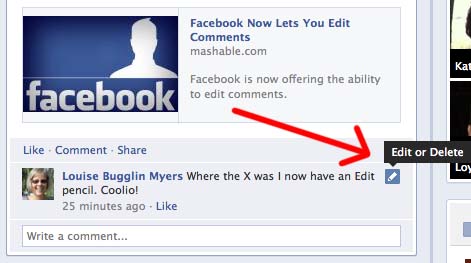
In 2012, Facebook initiated the “Edit pencil” instead of the X.
Here’s how it worked way back then:
The ability to edit comments was only available on computer for a time. It didn’t appear on Android devices until October 2013!
It’s easy as pie to edit a Facebook comment on desktop, iOS, or Android.
Save time – don’t delete and rewrite! Edit Facebook comments in a snap.
Pin it to Pinterest , so others can learn how to edit comments on Facebook!