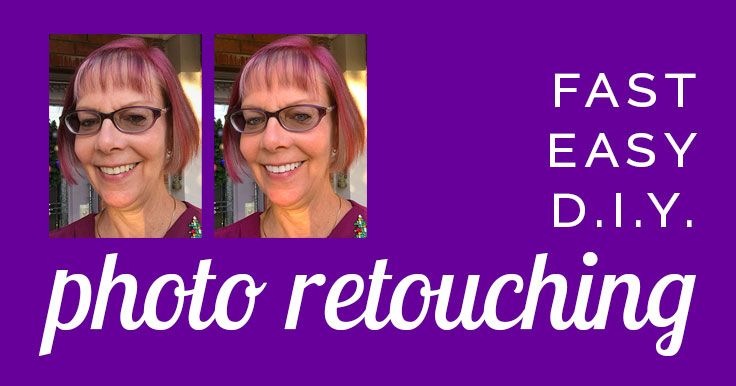
Want to put your best face forward?
Then you should learn how to retouch photos!
If that sounds like a job for a Photoshop pro – don’t fret! You can do this yourself, fast and easy, with PicMonkey.
So let’s get those profile pictures looking fine – in no time!
The same wrinkle annihilating, smile brightening power you get on PicMonkey.com is available to Premium users on mobile, and it’s quick as a wink 😉
This was allll I did to fix my face in the sample I’ve shown at the top and end of this post.
It’s amazingly fast with the Presto button, and you can get as precise as you like with:
Push-button plastic surgery! Check it out below.
Retouch your full-size image first! If you’re going to the trouble of retouching, I strongly recommend you start with the highest resolution image you have.
Save this photo to your device at top-quality.
You just might want that high-resolution retouched portrait for another use later! If you decide to print out some 8x10s, you’ll appreciate the quality you can get with the best resolution.
If you wish to crop or resize it before uploading to your social networks, save the cropped/resized version as another file.
A 500 pixel square-cropped image should work well on all social platforms. You don’t have to upload an exact image size .
Be aware that most platforms will show your image cropped to a circle, at least in some places. So don’t crop too tightly before uploading. You’ll lose the corners of your image.
Sample from Twitter. Note: for reference only. You don’t need to crop your image to a circle.
Don’t let a good face go to waste! (Yours, that is) .
You have so many options to do a face retouch in PicMonkey.
Whether you need a little brightening or a full makeover, the Monkey will make sure your profile picture is ready for prime time.
You don’t have to learn how to use Adobe Lightroom or Photoshop.
PicMonkey knows what you need – and has built in presets you can access with a click on the desktop tool, or a tap on mobile. Please share if this tutorial gave you loads of ideas on how to retouch photos!
Then go check out more Instagram profile picture ideas .