What’s the best Facebook event cover image size?
It differs from both the business page and the personal profile!
And includes a wild variety of shapes and croppings in various places, both on the app and on FB.com.
Mess up, and you might lose potential attendees.
Buckle up for a bumpy ride…
If you followed my advice last year – great news! The event cover photo has NOT been changed for 2026.
But if you’re seeing yours chopped unintelligibly, it’s due to the many event banner proportions seen across FB:
A dizzying array of shapes and sizes!
Your easiest answer is to use a photo with no text overlay.
But of course, you want to add text that explains at a glance what your event is about.
A great idea, but FB makes it challenging to have this type of design work!
To keep things simple, use a 16:9 ratio. Most iPhone design apps offer a 16:9 crop. There’s even one in your Photos app!
This works perfectly for event shares on mobile, and reasonably well elsewhere…
EXCEPT for your event page on mobile.
If you add text, keep it to the middle. No wider than a square.
Otherwise, you’ll be faced with something like this on mobile:
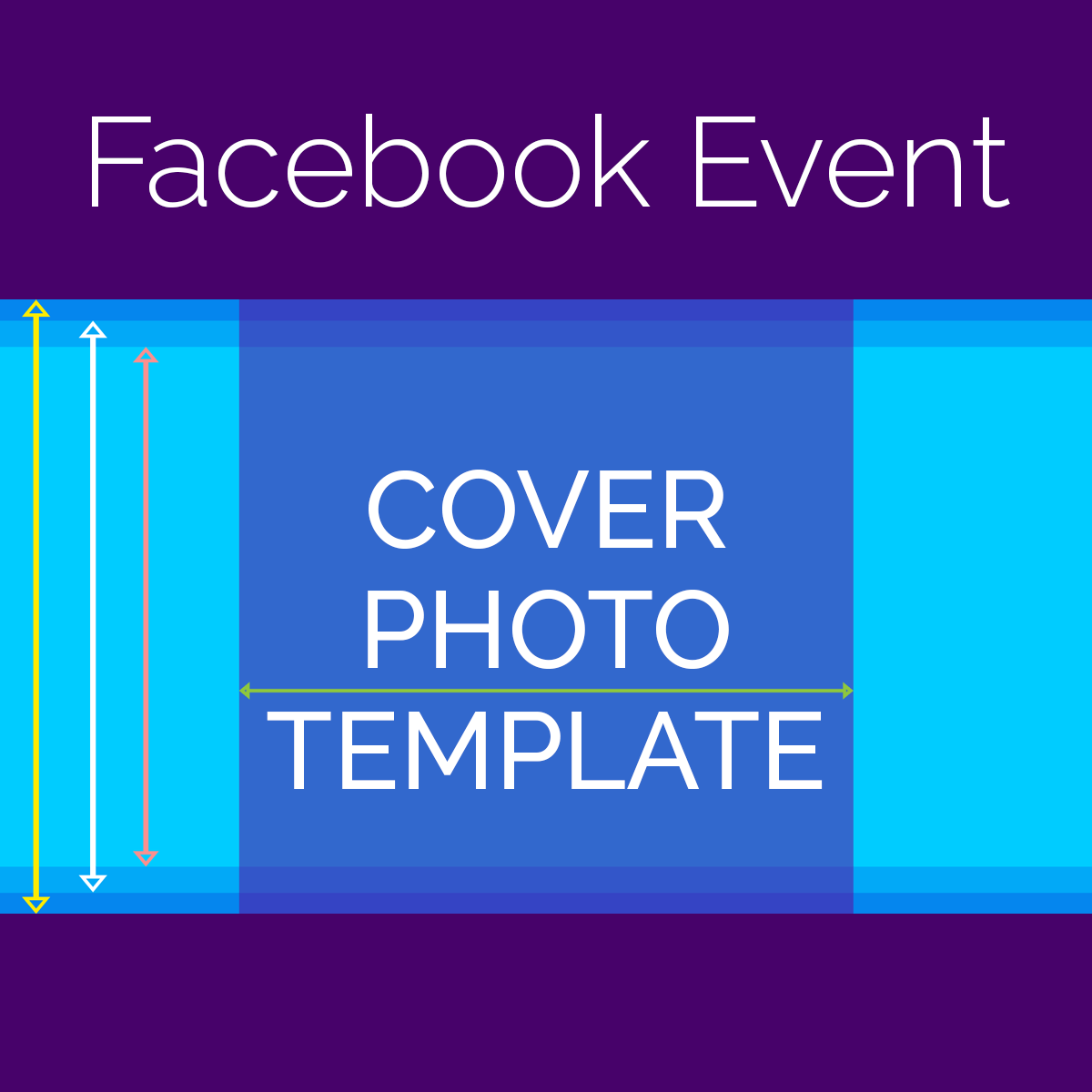
If you use Photoshop or similar, you can use my template to see where the various crops will try to ruin your design.
This template will help whether or not you have software that lets you set a specific pixel size. You can use a standard 16:9 shape, and visualize the parts that will be cropped out.
We’ll start with a nice large image: 1920 pixels wide by 1080 pixels tall (16:9 aspect ratio).
1. Open in Photoshop or other graphics editing program that has layers.
2. Change Image > Mode to RGB (the template is an indexed color PNG).
3. Add guidelines to match template, or use template as a translucent layer for guidance.
4. Delete template from image file when your design is done.
If your design program doesn’t have layers, you can use them for size and visual reference.
Right-click and choose “Save Image As…” to download the full-size template.
To add a cover photo or video to an event as the host:
1 | In the bottom right of Facebook, tap .
2 | Tap Events , then the calendar icon, then Hosting to find your event.
3 | Select your event and tap Manage .
4 | Tap Edit , then tap Pick a GIF, Gallery or Upload in the top right.
5 | Select a photo, then reposition it and tap Save .
6 | Tap Save again at the bottom.
Note: Keep in mind that you can’t edit the size of a cover photo after it’s been added to an event. source
Find constantly updated cover photo sizes with FREE templates for:
| Facebook Page Cover Photo size
| Facebook Group Cover Photo size
| Facebook Personal Profile Cover Photo size
Check out ALL the optimal Facebook image dimensions here!
Try Snappa online design tool for free!
Their templates give you the perfect size, with safe zones to ensure your beautiful design looks great on both desktop and mobile.
Whether you’re a pro designer or not, it’s got everything you need to create captivating graphics.
• • • Create a Facebook cover photo for free NOW! • • •
Disclosure: IF you upgrade to a paid plan, I may receive a referral fee.
This post was originally published in October 2014, and last updated in January 2026.
Please share if these updated tips helped you with the correct Facebook event image size!