Create a .iso image file of your DVD (preferred), or create a zip/rar file of your files and folders.
Upload the zip, or .iso file and update the TrepStar project. Before we burn the DVD, we unzip your files, or use the .iso file to create the DVD.
If you have an existing physical DVD , you'll need to create an .iso image file of your files or physical DVD. Not sure how to create an .iso file? Learn More VIDEO DVDs (movies etc): Are you trying to create a video DVD that will play in any DVD player? This requires DVD authoring which includes creating menus and chapters. All of these elements must be authored with software. For example, placing a set of .mp4 files into a zip file will not result in a video DVD that will play in a standard DVD player â it will simply create a data DVD that can be opened on a computer only.
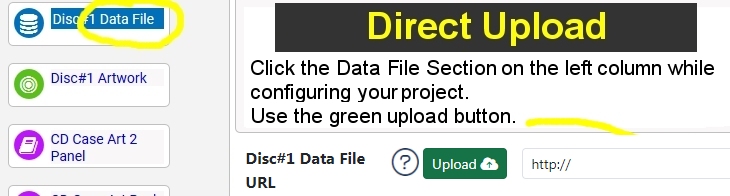
1) You may upload your file directly to the TrepStar Project. Edit your project, click the green upload button, and select your file.
2) You may upload your file to your website and type (copy/paste) that URL into the TrepStar Project. The following sample assumes you have access to a web server where you can upload files that are publicly accessible.
3) You may upload your file to a cloud service like Amazon S3. Make that file public, get the URL, then edit the TrepStar project and type in the URL to that file on your server. Learn More about Amazon S3
4) You may upload your file to the TrepStar free ftp public folder. Once the file is uploaded, edit the TrepStar project and type in the URL to that file on your server. Notice the URL to the TrepStar FTP folder ALWAYS begins with http://www.trepstar.com/trepstarftp/ Learn More about TrepStar FTP
If you would rather skip the file preparation step, or want complete project setup support, you have a few options. Learn More