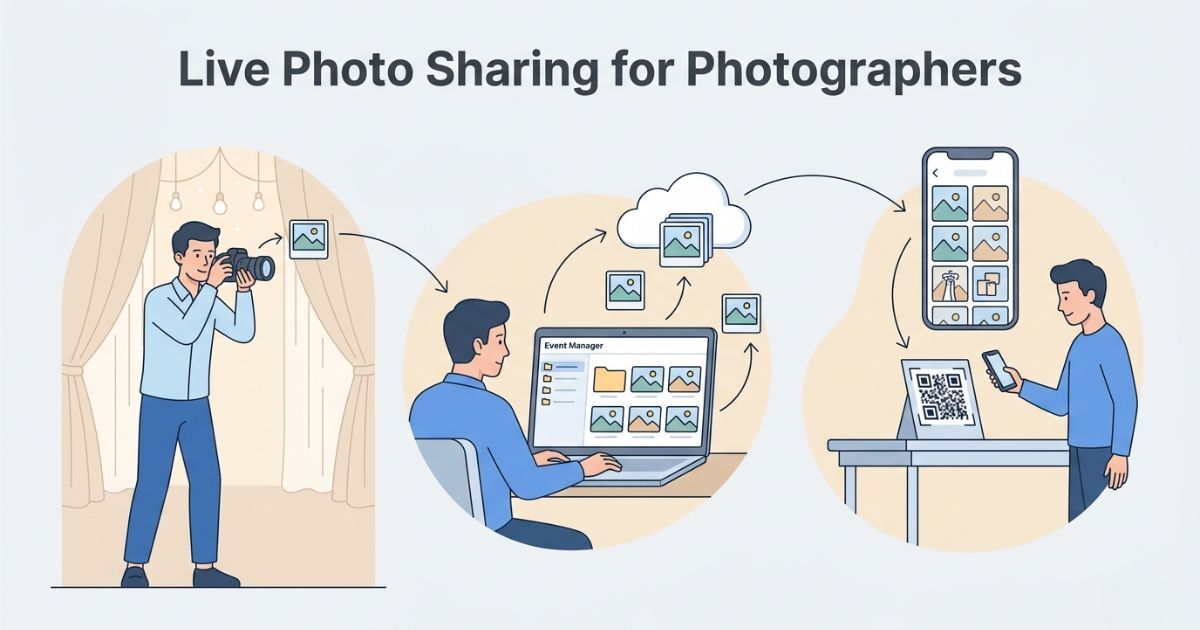
Your event photos reach guests within minutes of clicking the shutter, no waiting until the next day, no manual transfers, no confusion. It works in two simple stages.
The first step is getting photos from your camera to your phone, laptop, or desktop — automatically, as you shoot. Every major camera brand has its own solution for this.
Fully automatic. Once your photos land in the device folder, Photomall's Event Manager takes over — watching that folder and pushing every new photo straight to the Photomall server instantly.
Step 1 : Install Event Manager: Available on Windows, Mac and Android mobile devices.
Step 2 : Select Your Folder: Open Event Manager and point it to the folder where your camera app (Canon Connect / SnapBridge / Imaging Edge) is saving photos.
Step 3 : Sit Back and Shoot: Every photo that lands in that folder is automatically detected and uploaded to Photomall's server. No buttons to click. No file transfers to manage. Just shoot.
Photomall doesn't directly limit the number of cameras. It works based on devices (mobile/laptop) and folders, so multiple cameras can work together without any issue.
Each camera connects to a mobile or laptop and all devices upload photos automatically to the same event. So multiple cameras can work together without any extra configuration.
It's what modern clients expect. With the right camera app and Photomall's Event Manager, you can deliver this experience at every event, without adding any extra work to your day.