Summary : Looking for the best free screen recording tool? You're in the right place. In this blog, we've listed the ten best free screen recorders for you.
Screen recording plays an essential part in video making , especially when making tutorial videos, educational videos, and gaming videos.
There are loads of screen recording software that can help you capture your screen in a few clicks. In the article, we've collected the top ten of the best free screen recorders for you. Let's dive into them now.
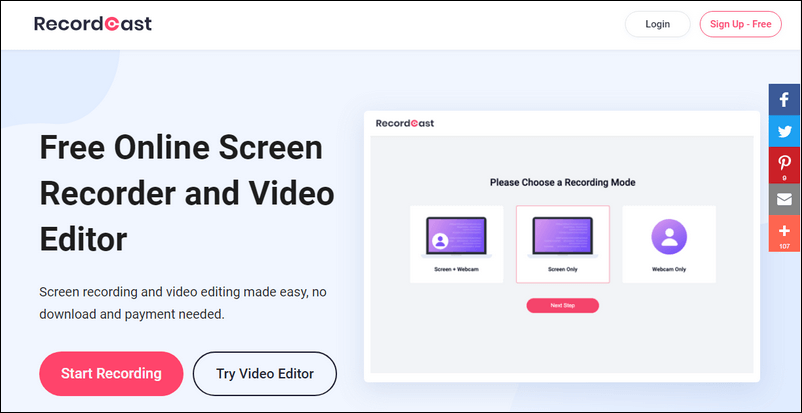
First on our list is RecordCast . It is is one of the best free screen recorders online. With the recording tool, you can capture your screen and webcam simultaneously with or without sound. When you're finished recording, you can also use its built-in video editor to do some basic editing, such as trimming, splitting, adding text, music, and backgrounds, and more.
Image Board: RecordCast Overview
Apowersoft, one of the best free online screen recorders, allows you to capture any area of your screen right in your browser. Apart from that, you can edit your screenshots while recording. The tool has no limits on what or how long your record is. The downside is that it lacks essential video editing features like trimming videos .
Image Board: Apowersoft Overview
FlexClip is an online application designed specifically for creating videos. It comes with powerful screen recording features, which allows you to easily capture the screen and camera online without installing any plug-ins. Besides, you can choose whether to record the computer sound or not. For now, the feature is completely free to use. If you want to make tutorial videos or gaming videos, FlexClip is a good choice.
Image Board: FlexClip Screen Recorder Overview
Screen-o-Matic is another web-based screen recorder that anyone can use for free. It has both recording and editing functionalities, making it ideal for creating videos for education, work, and personal. Besides, it provides you with a built-in stock library that can help you enhance your videos. What may disappoint you is that its free version comes with limited features. You’ll need to subscribe to its paid plan for at least $1.65 a month to unlock more features like editing and recording computer sound.
Image Board: Screen-o-Matic Overview
Operating Systems: Windows, Mac, and Linux
If you’re keen on recording and live streaming, OBS is your best bet. It is no exaggeration to say that OBS is the best free recording software for Windows, Mac, and Linux. With the robust program, you can capture your entire screen, a selected area of the screen, or your webcam in a few clicks. More importantly, it has no limit on your recording time, and you’re allowed to choose from various output formats.
However, the drawback is that OBS has no built-in video editor, which means you have to turn to a third-party video editor like https://www.flexclip.com/video-editor.html if you want to edit your captured videos.
Image Board: OBS Screenshot
①To edit your recorded video, click here .
②To trim your recorded video, click here .
③To compress your recorded video, click here .
Operating Systems: Windows 10/8/7 (32- and 64-bit)
Free Cam is one of the best free screen recording software for PC. It's easy to use and available on Windows 7, 8, and 10. Before you start recording, you need to customize your capture window size, which makes Free Cam different from other screen recording tools. When you're finished with the recording process, you can make edits to your recording with its built-in video editor, such as deleting the unnecessary sections, removing the background noise, and adding sound fade-in and fade-out effects.
Image Board: Free Cam Screenshot
Operating Systems: Windows, Linux, Mac OS X, Unix, iOS, Android, and More
VLC is a free, open-source media player widely used on Windows, Mac, and Linux. But did you know that in addition to playing videos, it also has the ability to record screens? If you happen to have it installed on your computer, you can use it to quickly capture your screen or webcam without installing any other software.
Image Board: How to Record Your Screen with VLC Media Player
Operating Systems: Windows Vista and Mac OS X Leopard
QuickTime Player is a media player that comes with the Mac. Although it is designed to play media files, you can also use it to record screens, movies, and audio. It has no time limit on your recording, and it won't add a watermark to your recording. If you're a Mac enthusiast and want to quickly record your Mac screen, don't forget to give the program a try.
Depict video: How to Record Your Screen with QuickTime Player
Operating Systems: Windows Vista, 7/8/10 (Support for 32/64-bit)
Bandicam is robust recording software for Windows 7, 8, and 10. What makes it unique is that it comes with three different recording modes: Game Recording, Screen Recording, and Device Recording.
The "Screen Recording" mode, the easiest one of three, allows you to record everything on your PC with computer sound. Besides, you’re allowed to annotate in real-time while recording.
The "Game Recording" mode is more complicated than the "Screen Recording" mode. It helps you record 2D/3D games in 4K Ultra HD video without any lag. When you’re finished recording, you can upload your high-quality recorded videos to YouTube without any compression.
The "Device Recording" mode lets you capture videos from external video devices, such as webcam, smartphone, Xbox/Playstation, IPTV, CCTV, etc.
Image Board: Bandicam Screenshot
Operating Systems: Windows 10, 8.1 and 7
ShareX is a free and open-source screen capture software for PC. It offers you a variety of screen recording modes, including full screen, custom region, active window, and more. Not only can you use it to take and edit screenshots, but you can also use it to record your screen in MP4 or GIF. When you're done recording, you can easily share the video, screenshot, or GIF you’ve captured to over 80 destinations, such as YouTube, Facebook, Google Drive, OneDrive, DropBox, and more.
Image Board: Sharex Screenshot
That's all for the ten best free screen recorders we want to share with you. Every tool has its pros and cons. As for which one is best for you, it depends on your needs. In general, pick an online screen recorder like RecordCast if you don't want to install any software on your computer. If you prefer desktop screen recording software, both OBS and VLC Media Players are ideal for you.
Think this post helpful? We'll appreciate it if you could share it with your friends.
How to Record Yourself and Your Screen at the Same Time on PC/Mac
How to Record Any Chrome Tab with Audio in Clicks
8 Best Free Screen Recorders with No Watermark
Top 19 Tips and Tricks to Record Presentations as a Video
How to Record Facebook Video Calls with both Video and Audio on Desktop, iPhone, Android
How to Record Google Meet for Free Gmail Users (PC & Mobile)
Best Way to Record Gameplay on PC 2021
Best Ways to Record an Interview with High-quality Audio and Video on Mac