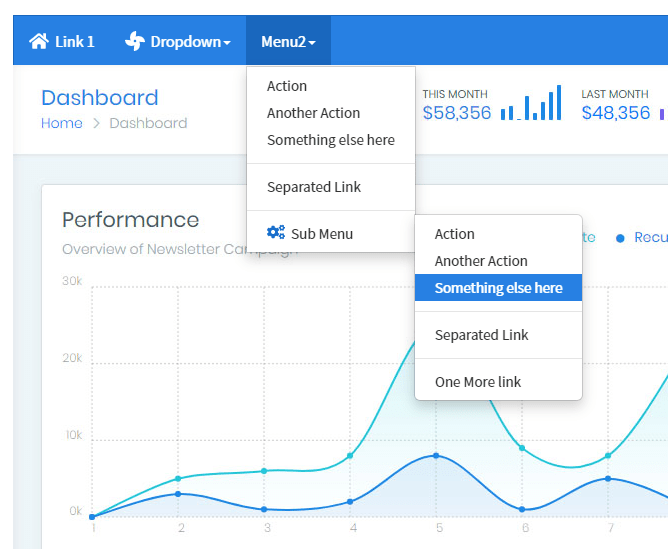
The N4 Dropdown Menu is a drop down menu for station navigation via ords/urls. All colours can be customized. However, advanced users can modify the color properties to match their style. You can also add icons to each link Before you start, copy the .jar file to your modules directory. Restart the station and Workbench.
Are you looking for a cost effective way to manage and visualize data for all your customers? Why not have a look at View Builder ?
Before you start. Download the module from our portal, copy to modules directory, update licenses and certs. Restart BOTH station and Workbench.
1. Copy the bootstrapDropdownMenu-ux.jar file to your modules directory. 2. Open the module from your palette file. 3. Drag and drop the widget from the palette onto your px view.
The drop down menu has a few properties. You can copy and paste JSON string into the config property. OR you can reference a file which contains your menu config.
The config is in JSON format. You can customise as needed. Below is the default config with examples. There are 2 themes: default and inverse, but not used if all colours are overridden in config. However you can override values as needed.
1. To help build your menu configuration use an online JSON editor like: https://jsoneditoronline.org/ Copy and paste the above JSON and modify.
2. After you have made changes to the JSON, set the config property value of the menu: IMPORTANT. You should remove all carriage returns and line breaks from the generated configuration before pasting. You can do this by using a text editor like Notepad++. In Notepad++ do CTRL+H (make sure extended Search mode is selected) to find and replace \r and \n with blank. This will remove all carriage returns and line breaks.
3. For the hyperlinks, valid ords/urls must be used. e.g. station:|slot:/Drivers/NiagaraNetwork/AHU1 /ord/station:%7Cslot:/Drivers/Graphics/Widgets/Energy$20Benchmark%7Cview:EnergyBenchmark www.google.com Target: to open in a new tab add _blank to the link config. Other possible values are _self, _parent, _top, _blank, framename "link": [ "Link 1", "/ord/station:%7Cslot:/Drivers/Graphics/Widgets/Energy$20Benchmark%7Cview:EnergyBenchmark", "_blank" ],
4. Please contact us if you're having trouble setting up the menu configuration.
File Config You can point the menu to a file that exists on the station. Valid values are ords e.g.: file:^dropdownMenu/config.txt If you do not specify a file reference the config property will be used instead. If you're having issues loading the menu, copy and paste the json as a string as noted in step 1.
Override Default Theme Colors backgroundColor, borderColor, menuDropdownFontColor, menuDropdownHoverFontColor, menuHoverColor, menuClickedColor, linkHoverColor, menuFontFamily, menuFontWeight, menuFontSize, linkFontFamily, linkFontWeight, linkFontSize You can override the default colors and values for these properties. Using the JSON above, specify a color in hex format e.g. #FFFFFF. If this field is left blank, the theme colors will be used.
Position You can override the menu position by setting position propert to absolute and the positionLeft and positionTop properties to XXpx, e.g. 20px.
Icon Image Each link can also have an image. Images must exist in the stations shared directory. E.g. /ord/file:%5EdropdownMenu/equipment-solid.png See config above for examples. Recommended height is 20px;
To change some of the styling on screen, set this property e.g. Override background colour: .container-fluid { background: grey !important; }
Override carat/right arrow colours: .dropdown-submenu:hover > a:after { border-left-color: grey !important; }
Menu Text and background colour when sub menu is open and active: .dropdown-submenu:has(> a:hover) { background: red !important;} .dropdown-submenu:hover > a {color: red;background-color: blue;}
Top menu colour when active: .nav .dropdown:hover > a {color: red !important;background-color: #eee !important;}
* Workbench Viewing Workaround Niagara Px View doesn't allow the menu items to appear over other items, however, there is a workaround: If you're running 4.3 or above, there should be a "toggle preview" button at the end of the toolbar when looking at a Px graphic. This will show you your Px page rendered in a browser.
back to more widgets...
Build Your Own dashboards and win Projects by showing data that increase value and reduces expenditure.
Home About Us Current Projects Affiliations Privacy Policy ECommerce Policy
View Builder IOT ™© Mobile Solutions N4 View Builder ™© Niagara PX Graphics
Software Development Consultancy Project Management Graphic Design Knowledge
T: +44 (0)800 511 8446 (UK) +1 888 207 4061 (US)
Copyright © 2026 Works Software & Engineering Ltd. All rights reserved.