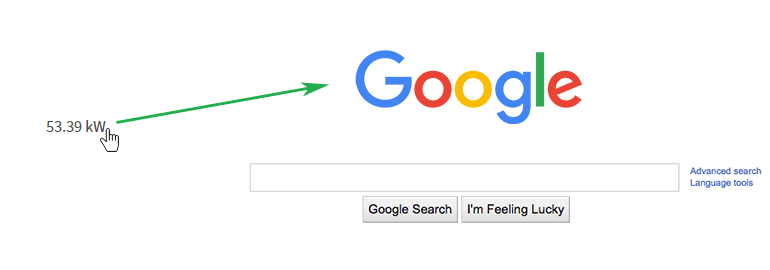
The Hyperlink Widget allows you to navigate to a station ord, hyperlink, or external hyperlink. If you set the Ord binding, then the ord value is displayed as the link, which updates in real-time. Alternatively, set the hyperlink text value and this value will be displayed as the link. When combined with our dashboard templates, your PX pages can easily navigate to other dashboard links. And you can also use a file like an image for the background. More info below:
Are you looking for a cost effective way to manage and visualize data for all your customers? Why not have a look at View Builder ?
Before you start. Download the modules from our portal (see your order confirmation, which also explains licensing). Copy the modules file to your modules directory. Restart BOTH station and Workbench.
1. Copy the hyperLink-ux.jar file to your modules directory. 2. Open the module from your palette file. 3. Drag and drop the widget from the palette onto your px view.
The widget has a number configurable properties that can be used to modify look, feel, and functionality.
The widget has a number of configurable properties that can be used to modify look, feel, and functionality. Change the properties as required:
Ord Binding (required): Set this to an absolute ord, e.g. station:|slot:/Drivers/NiagaraNetwork/AHU5 or relativized ORD e.g. slot:AHU5 OR Set this to a file ord to show a file like an image instead of a link. e.g. file:^indicatorlight.png Be sure to set the link property above to an absolute ord e.g. station:|slot:/Drivers/Graphics/AHUs and the linkTarget to ord
hyperlinkText: This is the text to show for the. Clear this value if you bound the widget to an ord like the step above. If an ord binding is set and this value is populated, the hyperlinkText value will be shown.
link: This is the link you want the hyperlink widget to navigate to. Examples: External Link: https://www.google.com/ Dashboard Template Link: /ord/file:%5Etemplates/floorplanZoningView/Niagara44_46_47/index.html%7Cview:web:FileDownloadView#/energyConsumptionView/station:|slot:/Drivers/Graphics/AHUs/AHU1?displayName=AHU1 NOTE: if you want to use the Ord binding link see below. For View Builder version >3.0: /ord/file:%5Etemplates/viewBuilder/Niagara410/index.html%7Cview:web:FileDownloadView#/alarmView/Alarms?displayName=Alarms /ord/file:%5Etemplates/viewBuilder/Niagara410/index.html%7Cview:web:FileDownloadView#/pxView?ord=station:|slot:/Drivers/Graphics/AHUs&displayName=AHUs
linkTarget: Link Target is the location of the Window (e.g. new window/tab). Possible Values: ord - if set to ord, the link will navigate you to the widget ord binding top - URL replaces any framesets that may be loaded. This is the default. Works best when linking to a dashboard link. blank - URL is loaded into a new window. parent - URL is loaded into the parent frame self - URL replaces the current page NOTE: this one is not used, but can be set if needed.
hoverCursor: Set this to cursor or unset.
underline: Set this to underline or none.
invisible: To make invisible, set the ord binding to a transparent image e.g 1x1 pixels. Then set the linking as required using the above. Download invisible image
Ord Link with Value Showing:
Ord Link with Text Showing:
back to more widgets...
Build Your Own dashboards and win Projects by showing data that increase value and reduces expenditure.
Home About Us Current Projects Affiliations Privacy Policy ECommerce Policy
View Builder IOT ™© Mobile Solutions N4 View Builder ™© Niagara PX Graphics
Software Development Consultancy Project Management Graphic Design Knowledge
T: +44 (0)800 511 8446 (UK) +1 888 207 4061 (US)
Copyright © 2025 Works Software & Engineering Ltd. All rights reserved.