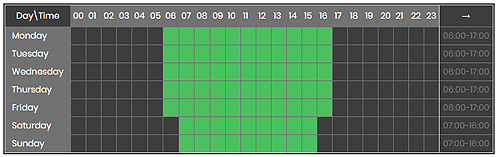
The time schedule widget links to a niagara schedule component and highlights the times in a tabular format. Use the LEFT-mouse button to highlight the time cells. You can also hold the mouse button to select multiple cells. Use the RIGHT-mouse (OR single-tap on Mobile) button to clear cells. When complete, the Niagara schedule updates instantly. The widget has a number of configurable properties that can be used to modify look, feel, and functionality. Also check out the Scheduling Dashboard
Are you looking for a cost effective way to manage and visualize data for all your customers? Why not have a look at View Builder ?
Before you start. Download the modules from our portal (see your order confirmation, which also explains licensing). Copy the modules file to your modules directory. Restart BOTH station and Workbench.
1. Copy the timeScheduleWidget-ux.jar file to your modules directory. 2. Open the module from your palette file. 3. Drag and drop the widget from the palette onto your px view.
The widget has a few configurable properties that can be used to modify look, feel, and functionality. Change the properties as required:
Main Ord Binding Link to a BooleanSchedule, NumericSchedule, or StringSchedule component. Set this to an absolute ord, e.g. station:|slot:/Drivers/NiagaraNetwork/BooleanSchedule or relativized ORD e.g. slot:BooleanSchedule The ord should point to a schedule.
back to more widgets...
Build Your Own dashboards and win Projects by showing data that increase value and reduces expenditure.
Home About Us Current Projects Affiliations Privacy Policy ECommerce Policy
View Builder IOT ™© Mobile Solutions N4 View Builder ™© Niagara PX Graphics
Software Development Consultancy Project Management Graphic Design Knowledge
T: +44 (0)800 511 8446 (UK) +1 888 207 4061 (US)
Copyright © 2025 Works Software & Engineering Ltd. All rights reserved.