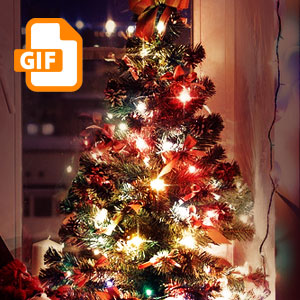
Christmas lights animated gif Photoshop tutorial for beginners. Learn how to create animated Christmas lights in Photoshop using your Christmas photos. You can also use other images with lights to create animated light effect.
Create Christmas lights animated gif in Photoshop using your own photos. How do I animate a Christmas tree image to make it look like the lights are blinking? Read the tutorial to find out.
To create the Christmas light animated GIF , I used these resources. The animated lights effect in Photoshop doesn't need the use of brushes or textures so these resources are optional.
Open your photo in a new PSD file.
If you want you can add some sparkle effects using the Sparkle Brushes . You can also use the Sparkle Overlay and set the blend mode to Screen .
Add an Exposure adjustment layer to darken the image like shown in the image. This is a night photo but I want to darken the image even more.
Pick the Brush Tool , set the color black and the opacity level around 50%. Use a soft round brush and paint inside the layer mask of the Exposure adjustment layer to create some highlights. Paint over the Christmas tree and a little over the girl image.
Add a Levels adjustment layer to increase the contrast of the image.
Add a Selective Color adjustment layer and modify the Whites settings to darken the highlights.
Add another Selective Color adjustment layer and modify the Whites settings to lighten the highlights to maximum.
Add yet another Selective Color adjustment layer and modify the Whites settings to lighten the highlights to maximum. Also modify the Reds .
You can make small color adjustments on the other color channels to your liking.
If you want to make a Christmas card you can add a Christmas text message: "I wish you a Merry Christmas and a Happy New Year!". I used Gabriola font type.
Add a Gradient map adjustment layer using these color tones: #290a59 (location 0%), #ff7c00 (location 79%) and #ffc71e (location 100%)
Set the blend mode to Soft Light .
Here is an animation Photoshop tutorial for beginners. You will learn how to create Photoshop animation effects in just a few easy steps.
Go to Window > Animation to open the animation tab. In newer versions you will get the Photoshop timeline. Click on the button shown in the image to Convert to Frame Animation .
Set the speed of the frame animation to 0.03 seconds.
For the first frame here are the visible layers and the hidden layers. Set the opacity of the Sparkle layer to 59%.
Click on the duplicate frame button to make a new animation frame.
For the second frame here are the visible layers and the hidden layers. Set the opacity of the Sparkle layer to 100%.
For the third frame here are the visible layers and the hidden layers.
For the fourth frame here are the visible layers and the hidden layers.
Before saving the gif animation you can test it to see how it looks. Click on the Plays Animation button.
To save a gif in Photoshop go to File > Save for Web and Devices and choose GIF .
So here is the final result for the Christmas lights animated gif made in Photoshop using photos.
If you want to create animated Christmas gif images you can try this Photoshop premium action. Add animated Christmas lights to your photos. The image can be saved as animated GIF or static JPEG.
The Christmas Lights Photoshop Action can be used for text, shapes and photos.
Cookies Vector Photoshop
Chalk Effect Photoshop