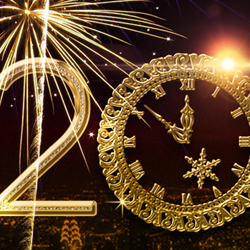
Today we'll learn how to create a party flyer for the new year in Photoshop using some beautiful gold layer styles and fireworks light effects . You can use this tutorial to create Happy New Year greeting cards , party flyers, calendars and so on. I really hope you will enjoy the 2014 Fireworks Party Flyer and that you will decide to give it a try.
Happy New Year old tutorial that you can use to create a 2018 greeting card in Photoshop.
Let's start with a simple black background layer. In a new layer add this city night stock image. Call this layer City Night . Go to Filter > Blur > Gaussian Blur and set the radius to around 2px.
Add a layer mask (just like in this Photoshop masking tutorial ) to the City Night layer and use the Gradient Tool to mask/hide the top area of the image. Use a black and white gradient.
Now I will add a Gradient Fill adjustment layer using a linear gradient made from these two colors: #ffc600 and #b13ae3 ; set the blend mode of the gradient map to Color , 100% opacity level.
In a new layer add a text using a font that you like. I used Ethon Free Font that you can download and use in Photoshop. Learn how you can install font in Photoshop from this quick tutorial.
I will use this clock PNG image to replace the zero from the "2014" text.
Use one of these gold Photoshop style for the text layer and the clock. You might have to scale the effects to look good; for that you have to go to Layer > Layer Style and choose Scale Effects . I have also added a "Happy New Year" text using the same golden style. You can download the gold styles that I have used for each layer from here
You can add a beautiful detail by using these line divider vector shape ; use a golden style also for this layer.
Use one of these optical lens flare textures to add some light effects to our golden text. Set the blend mode of the lens flare texture to Screen ; you can duplicate the texture, resize, rotate, combine multiple textures to obtain the result that you like best.
Time to add the fireworks effect ; for that I will use this beautiful fireworks texture and set the blend mode to Screen
I will now make some color and brightness adjustments to the fireworks image using a Brightness/Contrast and a Hue/Saturation adjustment layers.
You can duplicate the fireworks layer, resize and put it in another place like shown in the preview image.
For the final touches you can use some sparkle brushes to add sparkle effect for the gold text. Use #fffef4 color for the brush and add a Inner Glow layer style with color #ffdd66
So here is the final result for the Happy New Year Party Flyer made in Photoshop combining creatively some bling bling golden text styles, fireworks light effects and a city night stock image.
You might also want to try this Fireworks Photoshop actions . This action pack will allow you to create realistic fireworks effects out of any text, vector shape or raster image cutout . What it actually does is tracing the outline of the text or shape with burning fireworks sparklers in different color combinations.
Did you know you can use online tools like MockoFun to make Christmas cards? Combine Christmas vector shapes with text and create some amazing Christmas cards. MockoFun provides pre-made templates for making Christmas cards online in just a few minutes.
Check out this awesome list of over 50 Christmas fonts that you can use online or download for free to use in Photoshop. Combine Christmas fonts with text symbols like a star symbol for example.
Check out this tutorial on how to use the online Christmas Card Maker and all the awesome features that MockoFun has to offer.
Create a Christmas Pop Up Greeting Card in Photoshop
White Christmas Winter Landscape Photoshop Tutorial