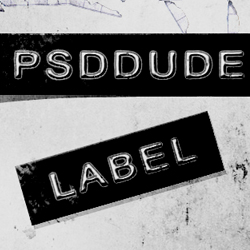
Learn how to create a label font in Photoshop using some simple techniques. You can of course use a type font that is available for free on the internet called impact label font (not to be confused with the Impact font generator ). But this tutorial shows you how to create the punch type effect not only for text but also for any shape. So I really hope you will enjoy following this tutorial and creating your own customized tape font .
Start with a simple black rectangle shape like in the image. Call this layer Label
Create a new layer and write a text using a font that you like. I have used Gautami Font ; if you don't have it you can easily download it and install font in Photoshop
Add a layer mask to the Text Layer . Use the Brush Tool with color black and simply draw some thin lines using a 1px hard round brush.
Convert the Text Layer into a smart object and add the following layer styles.
If you want to create this effect for shapes first you have to reduce the Fill to 0% and to add a Stroke layer style of around 4px.
Now let's add a smart filter to the text layer. Go to Filter > Distort and choose Ripple .
Return to the Label Layer and add a grunge image as layer mask ; see how to Convert Image to Layer Mask in Photoshop Using Channels . You have to desaturate the image before you add it as mask.
The label font should now look like this. You can reduce the opacity of the Label Layer to your liking. Add also a Drop Shadow effect for the Label Layer
You can add a grunge background texture , desaturate the texture and set the blend mode to Color Burn . So here is the final result for creating font label in Photoshop ; you can make the type font in different color variations.
Create a Sticker in Photoshop
Eraser Photoshop Text Effect