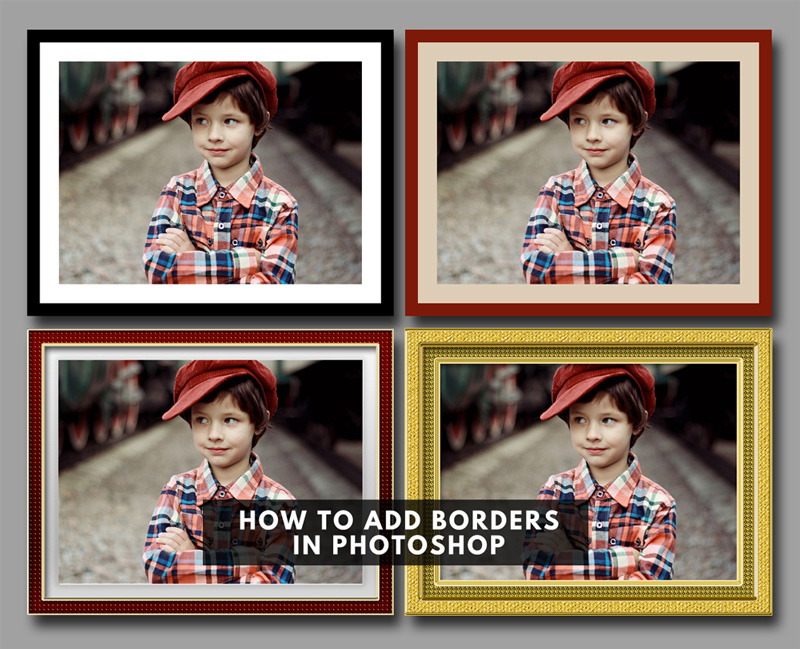
In this tutorial you will learn how to add a border to a photo in Photoshop in just a few steps. This is a quick step by step Photoshop tutorial for beginners to add borders or frames to your images.
Before we dive into this tutorial, I strongly recommend you to watch this short video tutorial on how to properly add a border to a photo:
And now let's see the steps to adding a frame border to an image:
First you have to open your image in a new PSD file.
Go to Image > Canvas Size and choose pixels from the drop-down list. Also make sure you check the Relative option. Choose the thickness of the border by typing the same size for the Width and Height .
Create a new layer and call it Border 1 . Press Shift-F5 to Fill the layer with any gray color.
Set the Fill of the Border 1 layer to 0%.
Add a Stroke layer style to create the border. Make sure you choose the Position Inside from the list. Choose the color; I use white color for this first border.
To add another border, press Control-J to duplicate the Border 1 layer. Rename the copy layer Border 2 .
Open the layer style window and modify the Stroke . Choose a lower size for the second border. Also modify the color; I use black color for the second border.
If you want to create more decorative and creative borders you have to convert each Border layer to a smart object. Right click on the layer and choose Convert to Smart Object .
To make fancy borders simply add layer styles to the smart objects. That way you can create realistic picture frames .
You can also use textures and layer styles for the frames. Wood Textures looks great for picture frames. Add the texture over the Border smart object, right click and choose Create Clipping Mask .
If you want to learn how to add border in Photoshop check out this quick tutorial for beginners.
BONUS: you get a free Photoshop frame action that includes 9 actions for framing photos.
If you don't have Photoshop, you can try MockoFun online photo editor which is a free Photoshop alternative. MockoFun is a great magic photo editor online and it has lots of cool features that you can use for free.
Make your pictures more creative in just a few easy steps! You don’t need advanced photo editing skills to frame a photo online.
TUTORIAL: So, if you want to learn how to frame photo online check out this quick tutorial. It's really simple to add frame to photo online. You can do it in 3 simple steps without advanced photo editing skills.
How to Fill Text with Image in Photoshop
Add a Halftone Border in Photoshop