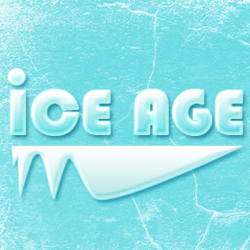
Hello, Are you a fan of cartoon movie Ice Age? I am too! In this tutorial I will try to show you how to make your own "Ice Age" like text effect. It is really simple to do. Have fun!
Write "ICE AGE" with Bauhaus 93 , regular, 72 pt , sharp�the color is not important because we are going to change it.
Go to Blending options of Ice Age layer and do the following settings:
The shadow color is # 10849d. It is important to know that if you are using another palette of colors you must adjust all the colors in this tutorial for a nice result(the stroke color, the shadow color, etc)
Drop shadow effect gives the text depth.
Inner Glow, use white color, color dodge and 100% opacity.
Bevel and Emboss - this gives a 3d look to the text. Use Highlight Mode Color white and Shadow Mode Color # 95e4e3
Gradient Overlay - colors of the gradient # 72dfe6 and white.
Stroke - color # a3f1f2.
This is the result so far!
Draw a circle with the Ellipse Tool and do the same settings as the one presented above.
With the Pen Tool draw a shape like in the next photo. After that we will do almost the exact settings that we did for the text.
So go to Blending Options and do the following settings:
Color white and #a6e4e7
Gradient color #bae8e7 and white.
Draw a rectangle with the Rectangle Tool, color #a4e9ee and place it beneath Ice Age Layer.
Now create a new layer on top of Rectangle Layer and copy this texture
and call it Texture. Set the blending mode of the Texture Layer to Overlay 70% and you are done.
This is my final result!
A Beautiful Way to Set Your Text on Fire
Another frozen woman ice effect