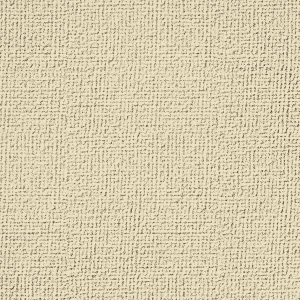
Learn how to create a Photoshop canvas texture from scratch. To make the canvas texture I will use a basic Photoshop filters called Texturizer. You can create your own canvas texture in just a few minutes.
Create a new layer and fill it with color white. Go to Filter > Noise > Add Noise .
Go to Filter > Texture > Texturizer and choose Canvas texture. Set the scaling and the relief according to your canvas size.
Set the foreground color to white and the background color to black.
Create a new layer and go to Filter > Render > Clouds .
Set the blend mode of this layer to Overlay and the opacity to 45%.
Add a Gradient Map adjustment to set the color of the canvas texture. If you want to create a white canvas texture choose a gray color tone and white.
You can choose the color that you like for the canvas texture.
You can also check out these Free Canvas Textures from PhotoshopSupply. The pack contains 10 canvas textures.
To make a photo look like a painting you can also use the Texturizer Filter . Making an image look like its on a canvas is a cool way to display your pictures.
I also used an Artistic filter called Paint Dubs for the image before appling the Filter > Texturizer > Canvas effect.
If you want to create canvas art using Photoshop, you can try this Oil Painting Photoshop Action .