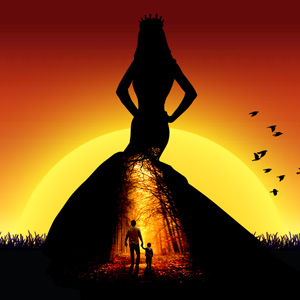
Learn how to make a double exposure in Photoshop using a woman silhouette. You can use other Photoshop silhouette images like birds, buildings or animals. You can make your own shapes and silhouettes using the simple techniques presented in this tutorial.
To make a silhouette in Photoshop you can use one of these techniques and tools:
In this tutorial we are going to make a cool photo effect using Photoshop silhouettes.
For this tutorial we need these Photoshop resources and stock images.
Create a new layer and add one of the Sunset Gradients included in this pack. If you don't have Photoshop you can use the sunset background JPG images.
First create a black rectangle using the Rectangle Tool .
Then, use the Seamless Grass to add a grass border. Add a Color Overlay to the grass layer and use the color black. Resize the grass and use multiple copies.
Use the Ellipse Tool to create a circle shape. Add these layer styles to make a glowing sun: Color Overlay (color #ffd72e), Inner Glow (color #fdfdfd) and Outer Glow (color #ffd905). Using these color and the background we get a sunset sun.
In a new layer add the Woman Silhouette using the Custom Shape Tool .
Make a new layer above the Woman Silhouette layer and add this Walking Stock Image . Right click and choose Create Clipping Mask . Use the eraser Tool and a soft round brush to blend the image with the woman silhouette.
This effect is similar to the double exposure effect .
Add a Levels adjustment for the stock image to get a better contrast and brighter colors. Again use the Clipping Mask option.
For the final touches you can add this Flying Birds Silhouette .
So, here is the final result for our beautiful photo effect. You can use this as sunset background, sunset wallpaper. You can of course use other woman silhouettes. This photo effect works great with animal silhouettes or building silhouettes for example.
Creating A Cartoon Rainbow
How To Write A Name In Sand Using Photoshop Video Tutorial