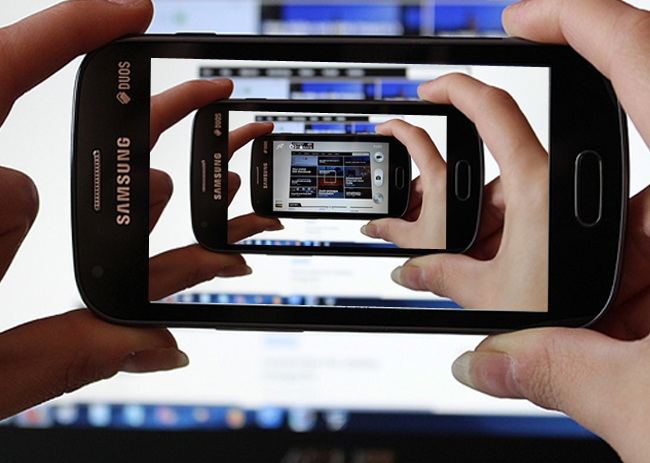
Learn how to create a video feedback loop effect in Photoshop from this quick tutorial for beginners. Create infinity mirror effect in just a few easy steps.
This effect is created by adding picture in a picture in a picture using the resize tool.
The video feedback is the process that starts and continues when a video camera is pointed at its own playback video monitor. A similar effect is the Droste effect or the infinity mirror effect.
Open your image in a new PSD file. The images that work great for this kind of effect are computer monitor or TV screens, mobile phone screens, mirrors, frames, etc.
Use the Pen Tool to draw the shape of the computer screen from your image. Call this layer Mirror .
Press Control-J to duplicate Your Image layer and place it above the Mirror layer.
Right click on the Your Image Copy layer and choose Create Clipping Mask .
Press Control-T to resize the image copy to fint on the screen shape.
Select the Your Image Copy layer and the Mirror layer. Drag them to the Create a New Group button to put them into a group. Rename the group Video Feedback 1 .
Righ click on the group to Duplicate Group . Name the new group Video Feedback 2 .
Go to the Mirror layer inside the Video Feedback 2 group and press Control-T to resize it to fit the smaller screen.
Go to the Your Image Copy layer inside the Video Feedback 2 group and press Control-T to resize and move to fit the smaller screen.
Repeat the Create the inifinity mirror effect step as many times as you want. It really depends on your image size.
So this is the final result for the video feedback loop or infinity mirror effect . This picture in a picture in a picture is also called the Droste effect . This is the effect of a picture recursively appearing within itself.
If you want to create a similar effect much easier, you can try this Video Fedback Photoshop Action and use it in your projects.
You might also like the kaleidoscope Photoshop action. I've made this kaleidoscope photo effect tutorial if you want to learn how to make images like this.
If you want to learn how to add border in Photoshop check out this quick tutorial for beginners.
BONUS: you get a free Photoshop frame action that includes 9 actions for framing photos.
If you don't have Photoshop, you can try MockoFun online photo editor which is a free Photoshop alternative. MockoFun is a great magic photo editor online and it has lots of cool features that you can use for free.
Make your pictures more creative in just a few easy steps! You don’t need advanced photo editing skills to frame a photo online.
TUTORIAL: So, if you want to learn how to frame photo online check out this quick tutorial. It's really simple to add frame to photo online. You can do it in 3 simple steps without advanced photo editing skills.
Add a Halftone Border in Photoshop
Happy Womens Day Greeting Image in Photoshop