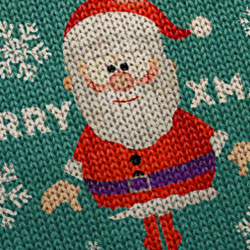
In this new Christmas tutorial we are going to make a vintage greeting card . To make the vintage effect I will use a knitted fabric combined with some grunge old paper texture. You can choose one of my three greeting card templates and choose also the Christmas graphics inside the card. I used a Santa Claus vector graphic but you can of course try it with a snowman, with a Christmas night background, with a Christmas tree and so on.
In this quick tutorial we'll learn how to create a vintage Christmas greeting card in Photoshop using some simple techniques, textures and xmas vector graphics .
First you have to download this greeting card PSD template ; we will use this template to create the xmas card .
Open the PSD file and inside you will find many layers that you can adjust and customize as you wish. I will only work with the Page 1 Layer , which is in fact a smart object . Double click on the layer thumbnail to open it.
Inside the Page 1 Layer you will find a smart object called Your Work ; open again this object and inside we'll create the xmas card design.
So let's start creating the design. I added three layers, a rectangle, another rectangle and an ellipse with the colors shown in the image. The white rectangle has also a small size Drop Shadow effect.
As the previous images are no longer available, use one of these santa claus Christmas vector graphics.
Around the santa claus you can add some Christmas vector shapes ; I've used snowflake custom shapes but you can use any xmas shape you want. Use
I will type "MERRY XMAS" using the intro free font . Learn how to install font in Photoshop from this quick tutoial for beginners.
Now we'll create the knitted fabric effect . Copy this knitted texture in your PSD file. You might have to resize the image to your liking. Also go to Image > Adjustments > Desaturate . Place the texture above all the other layers so that it covers the white rectangle. Set the blend mode to Hard Light
Save the two PSB files and close it to return to the initial file the one with the greeting card. Your result should now look like this. You can use with this fabric texture some stitch brushes to create interesting stitching and sewing effects.
You can also add some snowflake shapes on the card border. You can use a simple white color or you can give a letterpress style like I did.
For the final touches I have also added a bow PNG stock image. Use a Brightness/Contrast and a Hue/Saturation adjustment layers to change the color of the bow from purple to red.
Open the layer style window of the Bow Layer and add Drop Shadow and Inner Shadow styles.
To create that vintage old look I have added a old paper texture , blend mode Multiply for the two greeting card pages. So here is the final result for the vintage Christmas greeting card , hope you like it!
This set contains 6 Photoshop actions that will allow you to create realistic knitted and fur effects out of any text, shape, raster . The knitted furry effect can easily be modified and customized after the action is ended.
This set contains 4 actions with styles to create realistic knitted pattern effects in Photoshop out of any text, shape, graphics or any other image.
Did you know you can use online tools like MockoFun to make Christmas cards? Combine Christmas vector shapes with text and create some amazing Christmas cards. MockoFun provides pre-made templates for making Christmas cards online in just a few minutes.
Check out this awesome list of over 50 Christmas fonts that you can use online or download for free to use in Photoshop. Combine Christmas fonts with text symbols like a star symbol for example.
Check out this tutorial on how to use the online Christmas Card Maker and all the awesome features that MockoFun has to offer.
Winter Season Photoshop Manipulation Tutorial
Create Rays of Light in Photoshop