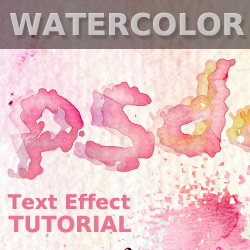
Learn how to create a watercolor stain text in Photoshop using some simple blending techniques and combining different watercolor and stain textures . You can also check out my previous tutorial on how to create a watercolor portrait in Photoshop if you want to transform your images into realistic watercolor aquarelle artworks.
For this tutorial you will nedd these stock images, textures and other resources.
In this tutorial you will learn how to create a realistic watercolor text stain effect in Photoshop using some simple techniques. I will start by downloading this drip stain font ; you will have to install font in Photoshop in order to use it. Type your own text using this drip font .
In a new layer copy a watercolor texture that you like; place this layer above the text layer.
Right click on the Watercolor Texture Layer and choose Create Clipping Mask ; as a result you will see that only the text shape is visible from the watercolor texture. The Text Layer acts like a mask for the Watercolor Texture Layer . Read more about Photoshop Clipping Mask Basics
Add the following layer styles to the Text Layer . The colors may depend on the colors of the texture that you use.
Duplicate the Text Layer and the Watercolor Texture Layer and simply move the new text layer like shown in the image. You can reduce the Opacity of this layer to around 50%. You can also remove the Stroke layer style for a softer result.
To make the effect look more real you can add some color splash using these drip and stain shapes ; use again a watercolor texture as clipping mask for the stains.
If you want to create a really creative result you can combine ink and pencil drawing with watercolor. I have use this doodle sketch and this black watercolor with a Multiply blend mode. You might have to add a Brightness/Contrast adjustment layer to obtain a seamless result.
I have also added a text using this beautiful realistic handwritten font ; you can use also some doodle brushes to make the effect look more interesting. To blend all the elements together I have added this watercolor texture with Multiply blend mode and 50% opacity level.
Combining watercolor with ink and sketch drawing and even illustration cutouts is often used in mixed media artworks ; so I really hope you like this tutorial and use some of these techniques in your own works.
You can try our brand new Photoshop action for creating sketch drawing with watercolor effects out any photo or image. The result is fully customizable.
You can try also these Photoshop actions for creating different stain effects like coffee, watercolor, ink, water, wine or blood out any photo or image. The result is fully customizable.
Are looking for watercolor textures and watercolor PNG images? Then, you really have to check out this Watercolor Textures Photoshop pack that you can download for free.
To create watecolor paint effect that looks authentic, you need to use realistic watercolor textures and combine them with your pictures. You can find all kinds of free textures for photoshop on this site.
Create a Green Earth Tree Environment Background in Photoshop
Make a Grunge Rusty Metal Text in Adobe Photoshop