If your widget blinks, flickers, or resizes all the time on your website, there might be two reasons:
Each widget has a unique embed code . We allow you to embed multiple Instagram widgets on the same page, but each must have an unrepeated code.
If you use the same code twice, the widget will behave wrongly and might flicker. Occasionally, the service or content management system (CMS) you use may result in code duplication in the output.
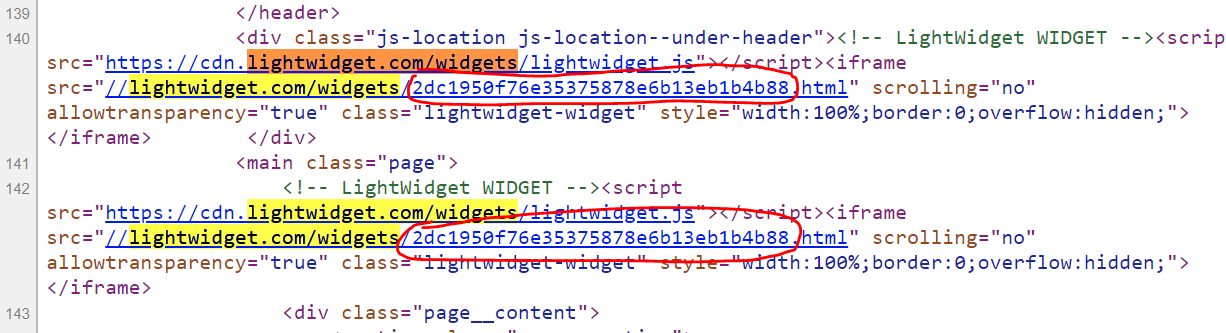
Load the page on your website where the feed flickers in your web browser. Depending on which browser you use, it might differ a little bit. The most common would be to right-click on your website and select View source . Alternatively, you can press the combination of Ctrl/Cmd + U on your keyboard, which will also show the source code of your website.
If you can’t find the option or the key combination is not working, search in Google or Bing how to see your website’s source code in the browser.
Once you see the code on your website, you must search for the widget embed code. The easiest option is to press the combination of Ctrl (on Windows)/Cmd (on Mac) + F . It should open the search box.
Type in the following phrase:
It will highlight all occurrences of the widget embed code. The string which is after the phrase above is a widget ID. If you find any duplicate in your code, it is the cause of the flickering.
Suppose your website uses Angular, React, or a similar tool, and you don’t use Server Side Rendering. In that case, the source code of your website may be empty or very minimal. You can paste the following snippet into the Console in DevTools instead. The output is a boolean value that indicates whether a duplicate exists.
If it outputs true , it means there are duplicates on your website. If it outputs false , there are no duplicates on your page.
The duplicated code might be a user error or improper installation.
It sometimes happens that the user wants to have a different configuration or look on desktop and mobile devices. While other services may require users to create two widgets, LightWidget allows you to achieve different settings for various devices using a single one.
If this is the case for you, please follow the instructions in this article – how to configure the widget for mobile devices . Ensure to configure the widget to have the desired settings across various screen sizes. You will have the single embed code. Use just one copy instead of two to solve the flickering problem.
The flickering can occur if the user wants to place the same widget in two (or more) locations on the website. For instance, one feed with the Instagram photos in the sidebar and one in the footer.
If this is the case and you want to have the widget in two places on your website, please create a new Instagram widget, even if it has the same settings. Replace one of the codes with a newly created one to stop the blinking.
In most cases, setting up our plugin is straightforward. If the duplicate of the embed code is not a user error mentioned above, please visit our list of Integrations . Try to find the service or CMS you are using to manage your website and follow the instructions in the selected article. It might require some additional configuration or tips on avoiding duplicates.
If you are using the GoDaddy platform to manage the look of your website, please follow the guide in this article – how to install LightWidget on GoDaddy .
Even if there are no duplicates, the widget in its default embed code will flicker. The reason is the conflict between the <script> that resizes our code and the JavaScript which GoDaddy uses.
To solve the flickering problem, the user must modify the embed code slightly, as described in the installation guide linked above, to solve the flickering issue.