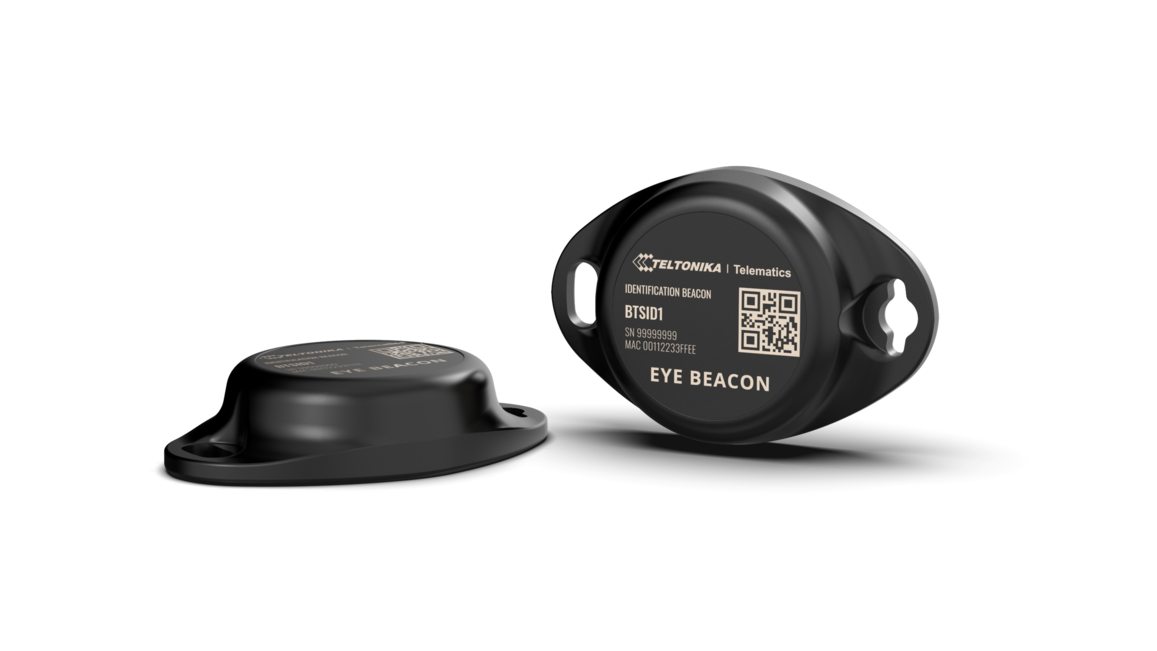
Wireless solutions open up new horizons for your business and help to keep an eye on your assets. Discover our brand-new and certified Bluetooth® Low Energy ID beacon model from Teltonika with robust waterproof casing and a long-lifetime battery. The model designed for a low-cost fast and easy configuration and integration to save precious time, resources, and ensure accountability.
Perfect for traceability use cases, delivery tracking, monitoring of various movable objects in logistics (trailers, containers), agriculture (tractor attachments), and constructions (tools and inventory). Also, it suitable for indoor tracking solutions for items tracking in warehouses, hospitals, transport hubs and other types of industrial areas. EYE beacon supports iBeacon and Eddystone protocols. The device is fully compatible with the Teltonika firmware platform which provides extended functionality. Configure, scan, and update anytime anywhere with a dedicated Teltonika mobile app.
Product Specification
*iOS doesn't show devices with iBeacon protocol
Value-adding Features
Hibernated mode means that the EYE device is OFF when shipping from the factory, preserving battery life. PLEASE NOTE that EYE devices are available in two modes: factory-activated (ON) or Hibernated (OFF). You may order the device version which better suits your needs. Order codes are described on eye page
Value of hibernate mode
Hibernated versions of EYE devices simplify stock management for our partners while maximizing battery life. 1. Accelerated delivery times:
By stocking up on hibernated EYE devices, you ensure readiness to deploy EYE devices with full battery capacity at any moment. This proactive approach provides fastest possible service, increases your reputation for efficiency and positions you as an industry frontrunner, enhancing your competitive edge.
2. Mitigated project risks:
In scenarios where projects encounter unforeseen challenges, our hibernated EYE devices offer a buffer. Hibernate feature allows to safeguard your investments and potential revenue streams. This means that even if projects encounter delays or complications, you can still deploy EYE devices with full battery capacity, ensuring optimal performance when the time is right.
How to activate hibernated eye device?
Attach any magnet to sleeping device and wait for LED to blink. NOTE: ANY MAGNET CAN BE USED Now device is discoverable, scannable, connectable via BLE.
How to send the device to hibernate mode?
If you want to put the EYE device back to hibernate mode after accidental activation or simply pause its use, you may do that following steps below: Step 1. While connected and in overview tap "Send device to sleep": Step 2. Confirm your selection: Step 3. Wait for EYE App to disconnect:
Can All devices hibernate?
1. All EYE Sensors with firmware version starting from 1.2.9.R.8 can hibernate.
2. Only new EYE Beacons bought with order codes that have hardware modification can hibernate standard codes are available in eye page , for special order codes consult your sales manager.
Mounting recomendations
EYE App Configuration
Devices work constantly and are ready to perform out of the box. Default basic Sensor settings are set to: • Transmitting at 2 dBm power. • Data advertising at 5 second intervals. • Eddystone protocol If you would like to change these settings you will need to: 1) Download and install EYE APP - Teltonika application to change sensor settings.
With the application you will be able to scan for visible Teltonika EYE devices, check their statuses, connect for configuration, download it or update the firmware.
Devices in view : In this window you will see all visible devices. You have options to see devices in Short list or in default list. When looking at devices in default list you will be able to open Detailed view of devices and check transmitted data statuses. Additionaly if you are looking for specific devices you will be able to use Search function to filter search options. When in this window select a device of your choice to connect and after passing pin code (default pin code is 123456) you will go to device overview window Overview window: In overview window you can see device details, check firmware version and update if available, go to device configuration settings and download the configuration. If you select to Configure device new window will open with Basic and Advanced settings. Other actions include changing the device PIN code and putting the device to sleep. A device in sleep mode will no longer be findable or connectable via the app. To wake it up, you need to attach a magnet and look for a green LED flashing. Configure window : In this window you can check and change device configuration settings. In main tab Basic Settings you can change main settings. Change Device name, Power signal strength, Advertising interval and Packet transmission type*. For more settings go to Advanced settings tab to enable various events. Advanced configuration window : Beacon information (iBeacon ID*, Eddystone ID). UUID/MINOR/MAJOR parameter can be changed for iBeacon ID*. Namespace ID/Instance ID can be changed for Eddystone ID
FM Tracker Configuration
Teltonika configurator (Base firmware)
If you have firmware / configurator which does not support EYE Beacon tab in Bluetooth® 4.0 section, then you can use Beacon list section of the configurator to scan available EYE Beacons. Below are short instructions which show how we recommend configuring the device to Enable the Beacon functionality for testing.
Steps to follow according to the visual representation
Teltonika configurator new functionalities (Evaluation firmware)
Bluetooth® 4.0 Common settings
Beacon List Beacons configuration instruction: How to start with FMB devices and Beacons?
Beacon detection - Parameter controls over all Beacons scanning:
Both ID and Name filters can work at the same time. If beacon doesn’t match ID filter, but matches the name, it will be added to beacon list. However, Filtering only works Beacon Mode is set to Simple.
Eye feature mode: Proximity
EYE beacon Proximity events is a functionality which creates three different types of records, depending on the captured Beacons RSSI level. This functionality is only supported with Teltonika EYE beacons. Proximity events consist of near, away and lost events:
Averaging Timeout This parameter specifies how long it will take current RSSI value to reach new RSSI value. For example, current EYE Beacon RSSI value is -40 dBm. FMB captures same EYE Beacon with RSSI value of -60 dBm. If averaging timeout is configured to be 10 seconds, it will take 10 seconds for RSSI value to reach -60 dBm from -40 dBm. Keep in mind that this is assuming perfect conditions and subsequent EYE Beacon RSSI
Eye feature mode: Lost & Found
Lost & Found EYE Beacon feature. Purpose of this functionality is to periodically generate records with all EYE Beacon list (AVL ID: 10828) and create eventual On Change records only when EYE Beacon is lost (AVL ID: 10831) or found (AVL ID: 10829). Lost and Found Beacon records only include EYE Beacon which was lost or found, not the full Beacon list.
Advanced Beacon protocol is being used to send Lost & Found records. Note:Same AVL ID’s as for Proximity events are being used, since two features cannot work at the same time.
Proximity and Lost & found AVL ID elements have the following structure:
When Proximity or Lost & Found events are sent, the records will always include Beacon RSSI, Beacon ID, low battery indicator and Battery Voltage.
Below is the mentioned Parameters description:
Hex value must be converted to decimal from signed 2s complement.
For EYE beacons that are transmitting using iBeacon protocol: Beacon ID is UUID, Major, Minor (20 bytes)
EYE Beacon Protocol overview
At the highest-level Bluetooth® LE advertising packet consists of Advertising Indication and Scan Response. Both packets can be maximum of 31 bytes in size. Advertising Indication packet is always broadcasted when Scan Response is broadcasted only if Observer device requests it by using Active Scan. BTSMP1 uses Advertising Indication to send beacon data which can be configured to select between iBeacon and Eddystone protocols or to be disabled at all. In that case, data which is shown as Scan Response in protocol overview will be sent as Advertising Indication without Scan Response following it. Scan Response is used to send device name and manufacturer specific data. Manufacturer specific data includes Teltonika Company ID (0x089A) and protocol version (0x01). It is followed by Flag Encoded Data (Table 1). Device Name has the following default value for Beacon – ID1_XXXXXXX
0 – Temperature value presence 1 – Humidity value presence 2 – Magnetic sensor presence 3 – Magnetic sensor state (1 magnetic field is detected/0 magnetic field is not detected) Valid value is present only if bit 2 flag is set. 4 – Movement sensor counter 5 – Movement sensor angle 6 – Low Battery indication (if set to 1 low battery voltage detected) 7 – Battery voltage value presence
Note: only bolded bits (6 and 7) can have value 1, on BTSID1
Battery voltage in mV = 2000 + VALUE * 10 NOTE: present only if bit 7 is set, otherwise is not being sent
*Max 2 with 01.02.10+ firmware
*with 01.02.10+ firmware 1 for both EYE_Beacon & EYE_Sensor
1 - Eddystone 2 - EYE Sensor 3 - iBeacon + EYE Sensor* 4 - Eddystone + EYE Sensor*
*01.02.10+ sensors are enabled over Activate / Deactivate Sensors
*from 01.02.10+ firmware
15 (0b1111) for EYE_Sensor
E.g. EYE_Sensor disabled movement & enabled temperature, humidity, magnetic sensors 7 (0b0111)
Byte 1 and 2 - timeout
Spam Duration in seconds
127 – Use default calib. table
Beacon (AVL ID:385) has the following structure:
Second half byte – total number of data parts
Two options available are:
21 iBeacon with RSSI
01 Eddystone with RSSI
Eddystone – 16B (Namespace, Instance ID)
E39B606AA38255AA8E46 – BLE Beacon Namespace
0B154E2D0055 – BLE Beacon Instance ID
FM EYE Beacon record parsing example with the new firmware
Below You will find an example on how to parse lost (AVL ID 10831) or found (AVL ID 10829) EYE Beacon record.
2a4f000100000000000000000001 2a4f001e011c0001a40110eb47706aa38255aa96f21a154e2d00550d01000e020bd6 010000823f
011c0001a40110eb47706aa38255aa96f21a154e2d00550d01000e020bd6
NOTE: The record structure for Lost Beacon Record (AVL ID:10829) is the same
Below You will find an example on how to parse visible Beacons list (AVL ID 10828) EYE Beacon record.
00000000000000898e0100000183a1c8fbe3000f0e310b209ab02600e900760d0000 2a4c0001000000000000000000012a4c005c011c0001c00110eb577075868d55aa96021b20313800550d0100 0e020c1c1c0001b60110ef3f3f74868d55aa9aeae91e313800550d01000e020bae200001a50114faffffff34b6f6aa38255aa9ef619154d0e200050d01000e020ad2 0100008811
011c0001c00110eb577075868d55aa96021b20313800550d01000e020c1c1c0001b60110ef3f3f74868d55aa9aeae91e313800550d01000e020bae 200001a50114faffffff34b6f6aa38255aa9ef619154d0e200050d01000e020ad2
This message contains information on how to operate BTSID1 safely. By following these requirements and recommendations, you will avoid dangerous situations. You must read these instructions carefully and follow them strictly before operating the device!
1. To avoid mechanical damage, it is advised to transport the device in an impact-proof package.
2. In case of malfunction contact your Teltonika account manager or write to the technical support team over the Partner Portal/Helpdesk.
Certification & Approvals
Nomenclature & Classification codes
https://teltonika-gps.com/eye/
The latest Product Change Notifications can be found: Product Change Notifications
Firmware Errata: BTS firmware errata
EYE App Errata: EYE APP errata
Product Promotional Material Page
Teltonika Networks: https://wiki.teltonika-networks.com/view/Bluetooth_EYE_Sensor_and_EYE_Beacon_support
https://wiki.teltonika-networks.com/view/Teltonika_EYE_device_pairing_and_data_sender_configuration_example
For EOL policy please refer to link here .