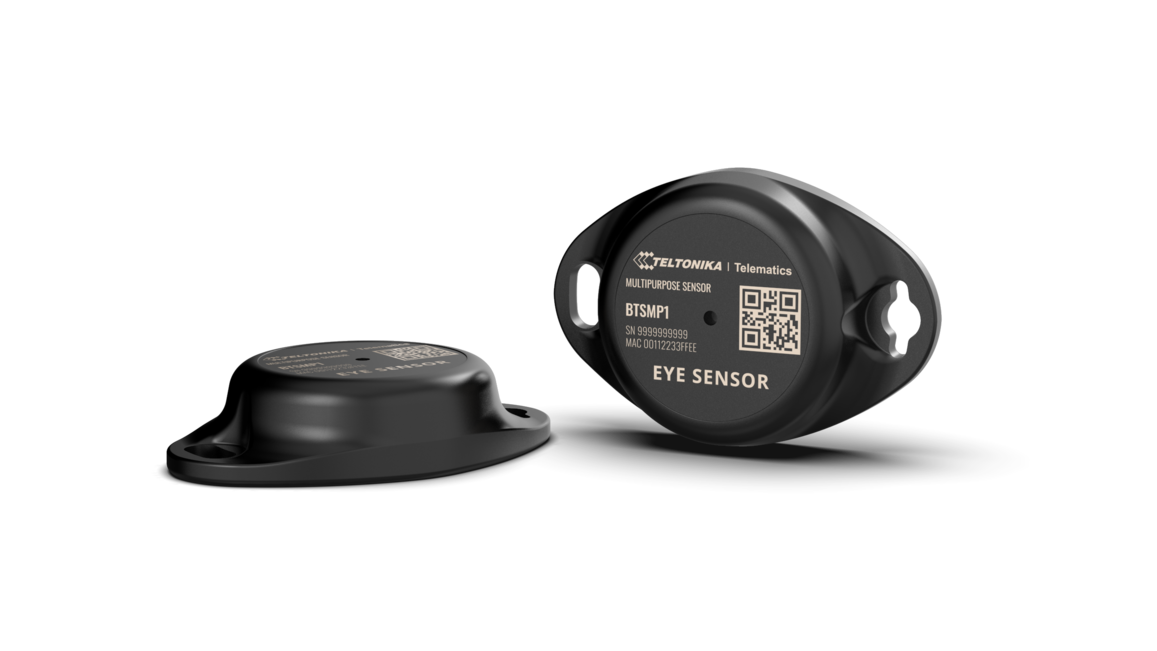
Wireless solutions open up new horizons for your business and help to keep an eye on your assets. Discover our brand-new and certified Mesh ID sensor model from Teltonika with robust waterproof casing and a long-lifetime battery. The model is designed for a low-cost fast and easy configuration and integration to save precious time, resources, and ensure accountability.
Perfect for traceability use cases for indoor tracking solutions for items tracking in warehouses, hospitals, transport hubs and other types of industrial areas. The built-in accelerometer can detect item movement, pitch and roll of the device. Magnet detection can be used for wireless open/close detection and notifications such as trailer door events, etc. EYE sensor supports iBeacon and Eddystone protocols. Configure, scan, and update anytime within Mesh network.
Product Specification
*iOS doesn't show devices with iBeacon protocol
Value-adding Features
EN12830 Certified Model version
EN12830 is a European standard specifying the requirements and test methods for temperature recording devices used in the storage, transport, and distribution of chilled, frozen, deep-frozen, and quick-frozen food and other types of products. It ensures these devices meet specific accuracy, resolution, and response time criteria to maintain product safety and quality.
Benefits of EN12830 Compliance
The EYE Sensor EN12830 model offers significant additional benefits, including:
All these benefits bring new business opportunities in cold-chain market! You may confidently track such items as:
Value to the end customer
EYE Sensor EN12830 benefits a wide range of customers, virtually anyone who works with temperature-sensitive goods. It offers several advantages, such as:
How to receive temperature data from EN12830 sensors
Please note that temperature recording must be enabled beforehand via the same APP.
Hibernated mode means that the EYE device is OFF when shipping from the factory, preserving battery life. PLEASE NOTE that EYE devices are available in two modes: factory-activated (ON) or Hibernated (OFF). You may order the device version which better suits your needs. Order codes are described on eye page
Value of hibernate mode
Hibernated versions of EYE devices simplify stock management for our partners while maximizing battery life. 1. Accelerated delivery times:
By stocking up on hibernated EYE devices, you ensure readiness to deploy EYE devices with full battery capacity at any moment. This proactive approach provides fastest possible service, increases your reputation for efficiency and positions you as an industry frontrunner, enhancing your competitive edge.
2. Mitigated project risks:
In scenarios where projects encounter unforeseen challenges, our hibernated EYE devices offer a buffer. Hibernate feature allows to safeguard your investments and potential revenue streams. This means that even if projects encounter delays or complications, you can still deploy EYE devices with full battery capacity, ensuring optimal performance when the time is right.
How to activate hibernated eye device?
Attach any magnet to sleeping device and wait for LED to blink. NOTE: ANY MAGNET CAN BE USED Now device is discoverable, scannable, connectable via BLE.
How to send the device to hibernate mode?
If you want to put the EYE device back to hibernate mode after accidental activation or simply pause its use, you may do that following steps below: Step 1. While connected and in overview tap "Send device to sleep": Step 2. Confirm your selection: Step 3. Wait for EYE App to disconnect:
Can All devices hibernate?
1. All EYE Sensors with firmware version starting from 1.2.9.R.8 can hibernate.
2. Only new EYE Beacons bought with order codes that have hardware modification can hibernate standard codes are available in eye page , for special order codes consult your sales manager.
Mounting recomendations
EYE App Configuration
Devices work constantly and are ready to perform out of the box. Default basic Sensor settings are set to: • Transmitting at 2 dBm power. • Data advertising at 5 second intervals. • Eddystone and Sensors protocol If you would like to change these settings you will need to: 1) Download and install EYE APP - Teltonika application to change sensor settings.
With the application you will be able to scan for visible Teltonika EYE devices, check their statuses or connect for configuration or firmware update.
In this window you will see all visible devices. You have options to see devices in Short list or in default list. When looking at devices in default list you will be able to open Detailed view of devices and check transmitted data statuses. Additionaly if you are looking for specific devices you will be able to use Search function to filter search options. When in this window select a device of your choice to connect and after passing pin code (default pin code is 123456) you will go to device overview window.
In overview window you can see device details, check firmware version and update if available, go to device configuration settings and download the configuration. If you select to Configure device new window will open with Basic and Advanced settings. Other actions include changing the device PIN code and putting the device to sleep. A device in sleep mode will no longer be findable or connectable via the app. To wake it up, you need to attach a magnet and look for a green LED flashing.
In this window you can check and change device configuration settings. In main tab Basic Settings you can change main settings. Change Device name, Power signal strength, Advertising interval and Packet transmission type*. For more settings go to Advanced settings tab to enable various events.
Advanced configuration: Beacon Settings
In Advanced settings tab you can can configure EYE beacon sensor parameters: Beacon information (iBeacon ID*, Eddystone ID). UUID/MINOR/MAJOR parameter can be changed for iBeacon ID*. Namespace ID/Instance ID can be changed for Eddystone ID. If you scroll down you will be able to adjust Sensor reading interval and event settings of the EYE Sensor Note: iOS doesn't show devices with iBeacon protocol
FM Tracker Configuration
Teltonika configurator (Base firmware / advanced mode)
If you have firmware / configurator which does not support EYE sensor tab in Bluetooth® 4.0 section, then you can still use Avanced BLE configuration to connect with EYE Sensors.
To configure FM with BTSMP1 EYE Sensor:
Firmware/configurator version with multiple custom IO fields per sensor, we recommend:
FMBXXX: 03.27.07.Rev.00/1.7.22_B.3.27_R.21 or newer
FMX640: 01.02.03/1.7.24_B.FM64_R.34 or newer (FMB640 does not support for BLE functionality)
Step 1: Check EYE App Settings:
Step 2: Configure FM device using Teltonika configurator:
Advanced mode configuration:
Preset Configuration:
If EYE Sensor Packet Settings is EYE Sensors or Eddystone and EYE Sensors:
If EYE Sensor Packet Settings is EYE Sensors or iBeacon and EYE Sensors:
IO element value descriptions:
4000 - abnormal sensor state
3000 - sensor not found
2000 - failed sensor data parsing
Teltonika configurator new functionalities EYE Sensor filtering by name
Starting with firmware 03.29.00.Rev.13 there is additional tabs available in Bluetooth® 4.0 section that allow for easier configuration to connect FM and EYE sensor or beacon.
It's now possible to connect up to 100 sensors at once just by entering one name in the configurator name list. It's required to enter at least 3 characters(case sensitive) in the name for FM to scan the sensors. Super easy to set up!
For example, you may order Sensors with special configuration from factory where the EYE Sensor names would be TRAILER_1,TRAILER_2,...,TRAILER_99 and so on.
If you would enter TRAILER in the EYE Fimrware FM configurator then sensors who meet this name condition, for example TRAILER_1, TRAILER_21 , TRAILER_17, would be scanned, while other sensors named Tools, MP1_123546, etc. will not be scanned. With this option, you can upload one configuration to FOTA web and it doesn’t matter which sensor from the list end user will mount, it will be scanned and sent to the server as long as it meets the name criteria.
Bluetooth® 4.0 Functionalities were reorganized and transferred to Bluetooth® 4.0 configuration tab with additional horizontal tabs selection for specific settings:
Sensors Sensor Configuration can be set to Custom Sensors, Eye Sensors or both. With the Custom Sensors setting enabled, any BLE sensor can be configured. When EYE Sensors is selected, Eye Sensor connectionless functionalities or EYE list search window will appear, depending on the selected EYE Sensor filter. Name When EYE Sensors Filter is set to Name , the Eye List search window will appear on the configurator. With this setting, separate EYE Sensor records (AVL ID: 11317) will be generated according to the configured parameters, which are described below:
Once Eye Sensor filtering by name list is selected, EYE Sensor records containing the AVL ID:11317 will start being generated. Below is an example of how EYE Sensor data is packed into AVL ID 11317 AVL ID 11317 structure
Parameter IDs are used to identify what type of EYE Sensor information is included in the packet. Below is the table describing the possible EYE Sensor parameter IDs, along with their data type and data length.
*Only available with evaluation firmware BTSX.1.2.11.magcounter.R.1 of EYE Devices
MAC IF EYE Sensors are selected to be filtered by MAC address , separate EYE sensor records will not be generated; EYE sensor values will be included into regular records with their corresponding IO elements. Up to 4 EYE Sensors can be configured with different MAC Addresses. In the case of filtering by MAC Address, more advanced configuration is possible, as EYE Sensors’ IOs’ Low, High level, Event Only and Operand parameters can also be configured separately for each IO.
Table below describes I/O elements which were added for EYE sensor with the new functionalities release.
Eye sensor parameters have error code values, which will written to the I/O value if parameter data is not received. From the error code value, it is possible to distinguish whether the issue is on the FM tracker side or the EYE Sensor. Below is a table describing these values.
Note: If you are using presets(firmware/configurator without EYE product support), then refer to BLE Sensors I/O elements table instead.
EYE Sensor Protocol overview
Beacon and sensors data
Protocol description
At the highest-level Bluetooth® LE advertising packet consists of Advertising Indication and Scan Response. Both packets can be maximum of 31 bytes in size. Advertising Indication packet is always broadcasted when Scan Response is broadcasted only if Observer device requests it by using Active Scan. BTSMP1 uses Advertising Indication to send beacon data which can be configured to select between iBeacon and Eddystone protocols or to be disabled at all. In that case, data which is shown as Scan Response in protocol overview will be sent as Advertising Indication without Scan Response following it. Scan Response is used to send device name and manufacturer specific data. Manufacturer specific data includes Teltonika Company ID (0x089A) and protocol version (0x01). It is followed by Flag Encoded Data (Table 1) and Extended Data (Table 2). Later on, protocol will be highly configurable in and will allow to disable/enable sending of device name or any sensor value allowing to reduce size of the packet being sent.
Teltonika BTSX devices are transmitting one or two packets depending on the selected protocol. Broadcast packet + Scan response packet.
A scan response packet is sent when an active scan is used, within the BLE layer of communication. The default for our FM devices and many other applications for example our EYE Appication or nRF connect Application is an active scan.
There are three protocols, with the following packets:
1.iBeacon + EYE Sensors
2.Eddystone + EYE Sensors
For iBeacon + EYE Sensors and Eddystone + EYE Sensors protocols only iBeacon/Eddystone packet is broadcasted and will be seen by both active and passive scans, to see the EYE Sensors packet you need to use an active scan. In other words in an environment where no BLE devices are scanning with an active scan or in case when there are no scanning devices at all, only the iBeacon/Eddystone packet will be sent by the BTS device to conserve energy.
With EYE Sensors protocol, the EYE Sensor packet becomes broadcast. In other words, in an environment where no BLE devices are scanning with an active scan or in case when there are no scanning devices at all EYE Sensors packet will be sent by the BTS device.
More Information on Active vs passive scans Device Name has the following default value for Beacon – ID1_XXXXXXX
0 – Temperature value presence 1 – Humidity value presence 2 – Magnetic sensor presence 3 – Magnetic sensor state (1 magnetic field is detected/0 magnetic field is not detected) Valid value is present only if bit 2 flag is set. 4 – Movement sensor counter 5 – Movement sensor angle 6 – Low Battery indication (if set to 1 low battery voltage detected) 7 – Battery voltage value presence
Value in Celsius / 100 NOTE: present only if bit 0 is set, otherwise is not being sent
Value in percent NOTE: present only if bit 1 is set, otherwise is not being sent
Most significant bit indicates movement state and 15 least significant bits represent count of movement events. NOTE: present only if bit 4 is set, otherwise is not being sent
Most significant byte – pitch (-90/+90) Two least significant bytes – roll (-180/+180) NOTE: present only if bit 5 is set, otherwise is not being sent
Battery voltage in mV = 2000 + VALUE * 10 NOTE: present only if bit 7 is set, otherwise is not being sent
GATT Characteristics
*Max 2 with 01.02.10+ firmware
*with 01.02.10+ firmware 1 for both EYE_Beacon & EYE_Sensor
*01.02.10+ sensors are enabled over Activate / Deactivate Sensors
*from 01.02.10+ firmware
E.g. EYE_Sensor disabled movement & enabled temperature, humidity, magnetic sensors 7 (0b0111)
Byte 1 and 2 - timeout
Spam Duration in seconds
127 – Use default calib. table
*Only with EN12830 certified devices
EYE Sensor Bluetooth® frame parsing example
In this example would be (MSB) 1 011 011 1 (LSB) and is parsed from least significant byte(LSB).
0 – Temperature value presence. 1 Means device is reading and transmitting temperature value.
1 – Humidity value presence. 1 Means device is reading and transmitting humidity value.
2 – Magnetic sensor presence. 1 Means device is reading and transmitting Magnetic sensor value.
3 – Magnetic sensor state (1 magnetic field is detected/0 magnetic field is not detected) Valid value is present only if bit 2 flag is set.
4 – Movement sensor counter. 1 Means device is reading and transmitting movement state and count values.
5 – Movement sensor angle. 1 Means device is reading and transmitting angle roll and pitch values.
6 – Low Battery indication. 0 – Means device battery is from 100 to 15 % (When value changes to 1 Battery level is lower than 15 %.
7 – Battery voltage value presence. 1 Means device is reading and transmitting battery voltage value.
Raw value needs to be divided by 100.
Real temperature is 22,28 Celsius.
Decimal value is humidity in percent. Humidity 18 %
0 - Most significant byte(MSB) represents Movement status . In this case device is not moving 0. If it was 1 device is moving.
000 1100 1100 1011 – represent detected movements count 3275 decimal value means device has detected total 3275 movement events,
In this example device pitch is 0000 1011 (2's complement) = 11° degrees.
FFC7– Two least significant bytes represent device roll . Device roll can be from -180 to 180 degrees.
In this example device Roll is 1111 1111 1100 0111 (2's complement) = -57° degrees
FM Packet parsing example (Base firmware / Advanced mode)
It's parsed from least significant byte(LSB):
Bit 0 – Temperature value presence.
1 Means device is reading and transmitting temperature value.
Bit 1 – Humidity value presence.
1 Means device is reading and transmitting humidity value.
Bit 2 – Magnetic sensor presence.
1 Means device is reading and transmitting Magnetic sensor value.
Bit 3 – Magnetic sensor state
1 magnetic field is detected/0 magnetic field is not detected) Valid value is present only if bit 2 flag is set.
Bit 4 – Movement sensor counter.
1 Means device is reading and transmitting movement state and count values.
Bit 5 – Movement sensor angle.
1 Means device is reading and transmitting angle roll and pitch values.
Bit 6 – Low Battery indication.
0 – Means device battery is from 100 to 15 % (When value changes to 1 Battery level is lower than 15 %.
7 – Battery voltage value presence.
1 Means device is reading and transmitting battery voltage value.
FM EYE Sensor record parsing example with the new firmware supporting EYE Sensor filtering by name)
Parsing EYE Sensor records example Below You will find an example on how to parse EYE Sensor record with two EYE Sensors present.
0130050f4d50315f42453241413500000000000602d60807012f0801000901000a024e000b01f90c025aff0d01000e020bcc 30050f4d50315f33464539414100000000000602cb080701300801000901000a0263000b01000c02af000d01000e020b90
This message contains information on how to operate BTSID1 safely. By following these requirements and recommendations, you will avoid dangerous situations. You must read these instructions carefully and follow them strictly before operating the device!
1. To avoid mechanical damage, it is advised to transport the device in an impact-proof package.
2. In case of malfunction contact your Teltonika account manager or write to the technical support team over the Partner Portal/Helpdesk.
Certification & Approvals
Nomenclature & Classification codes
https://teltonika-gps.com/eye/
The latest Product Change Notifications can be found: Product Change Notifications
Firmware Errata: BTS firmware errata
EYE App Errata: BTS APP errata
EYE Sensor Promotional Material
Teltonika Networks: https://wiki.teltonika-networks.com/view/Bluetooth_EYE_Sensor_and_EYE_Beacon_support
https://wiki.teltonika-networks.com/view/Teltonika_EYE_device_pairing_and_data_sender_configuration_example
For EOL policy please refer to link here .