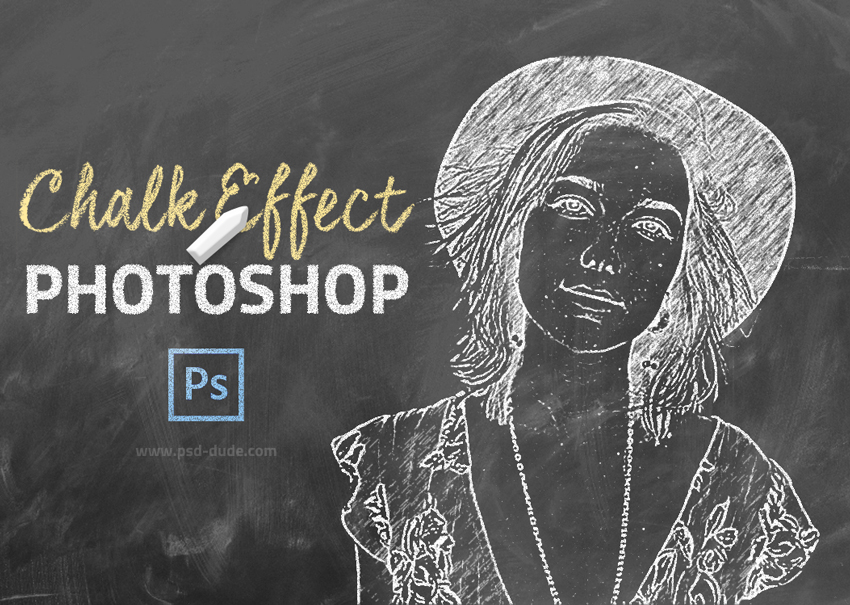
Chalk effect Photoshop tutorial for beginners. Create realistic chalk effect in Photoshop using sketch filters and a chalkboard background. Turn your photo into a chalk drawing using Photoshop in just a few easy steps.
If you want to create chalk effect in Photoshop more easily you can try these Photoshop actions. Obtain easy results with these chalk Photoshop actions that work for text, shapes, logos and even photos.
Let's take a quick look at the chalk effect that we are going to create in this tutorial. You can use any photo, graphics images, etc.
Use this Chalkboard texture as background for the chalk effect in Photoshop.
If you want to change the color of the chalkboard texture use a Gradient map . The colors for the gradient are: #000000 (location 15%) and #ffffff (location 66%)
In a new layer add the image that you want to turn to chalk effect in Photoshop. Call this layer Chalk Effect 1 .
Press Control-J to duplicate the Chalk Effect 1 and call it Chalk Effect 2 .
Set the Foreground color to #ffffff and the Background color to #000000
Go to Filter > Sketch > Photocopy and apply this effect to the Chalk Effect 2 layer.
Set the blend mode of the Chalk Effect 2 layer to Screen .
Go to Filter > Sketch > Graphic Pen and apply this effect to the Chalk Effect 1 layer.
You can also add a soft Filter > Blur > Gaussian Blur effect if you want.
Set the blend mode of the Chalk Effect 1 layer to Screen .
If you want you can group the two layers Chalk Effect 1 and Chalk Effect 2 in a group. Add a Layer Mask to the group.
Go to Filter > Noise > Add Noise and set the Noise filter to create the chalk effect that you like. Make sure you are in the layer mask otherwise the noise filter will not be active.
This is the chalk effect that we have created so far. It looks pretty realistic.
You can also use a chalk font that works great with the chalk effect and the chalkboard background. I used this great Chalk Font that looks awesome. You can use any color you like for the chalk font.
You can turn any font into chalk font easily if you add a layer mask and use the Noise filter.
So this is the final result for the chalk effect in Photoshop. You can use some chalk brushes if you want. Also you can use this Chalkboard Background that has a wooden frame.
You can use the Brush Tool to colorize the chalk drawing. Create another layer, use a chalk brush and set the blend mode to Lighter Color , opacity 75%.
Christmas Lights Animated GIF
Outline in Photoshop