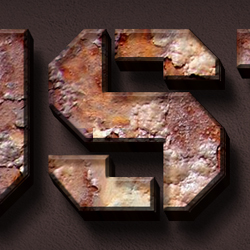
Today we are going to create an interesting 3D rusty metal text in Photoshop using layer styles and textures. To make the process more easier, for this tutorial we'll use a 3D text mockup. We'll simply modify the layer styles adding a seamless rust pattern and the result is done. You can use this rusted metal effect for text and shapes.
In this tutorial you learn how to create a rusty metal text in Photoshop using some simple layer styles and rust metal textures . First you have to download this 3D text mockup PSD file .
Now all we have to do is to customize the PSD mockup that we have just download it. Let's start with the text. Double click on the "3D text by psddude" smart object thumbnail to open it.
Again double click on the "3d effect by psddude" thumbnail to open this smart object.
Inside you will find a text layer. Simple replace the text. You can also change the font size and font family . I will use the font type called Black Ops One - a font that you can download for free. Learn how to install font in Photoshop from this tutorial.
Save the smart object and close it to see the result. Add the following layer styles to the "3d effect by psddude" smart object as shown in the previews.
Check out this list for pre-made metal textures or this list with even more free metal textures
Drop Shadow layer style, color #121212
Inner Shadow layer style, color #49291b
Inner Glow layer style, color #5e5959
Bevel and Emboss layer style, colors white and #121212
Color Overlay layer style, color #3c1d10
Pattern Overlay layer style: I used a rust texture to create this seamless rusty metal pattern . Download the texture here (credit for the stock image fantasystock )
Save the smart object and close it to see the result.
Now add these layer styles to the "3D text by psddude" layer.
Pattern Overlay layer style. Download the texture here (credit for the stock image fantasystock )
To create the depth of shadow from the final image you have to create a copy of the text layer and fill it with black color. Use the Filter > Blur > Motion Blur to create the long shadow effect. Move the shadow layer to direction you want.
Now all you have to do is to add a nice looking background that you like. It can be a grunge wall texture, a wood texture, etc. Here is the final result for the rusty metal text effect .
Stargate Ori Character Brought to Life in Photoshop
Halloween Fire Text Style Photoshop Tutorial